
The Enye letter (Ñ/ñ) is commonly used in Spanish and Filipino words, names, and places. However, typing this special character can be confusing, especially when your keyboard doesn’t have a dedicated Ñ key.
Fortunately, there are several easy ways to type Enye on a Windows computer, Mac, laptop, Android phone, or iPhone. You can use keyboard shortcuts, Alt codes, character maps, or simply copy and paste the symbol.
In this guide, we’ll explain how to type Enye (Ñ/ñ) on any keyboard, including methods that work without a numeric keypad. We’ll also cover Microsoft Word, Google Docs, Excel, and common keyboard problems.
1-Minute Answer (Fastest Ways)
Copy Enye
Copy Enye (Ñ/ñ)
Click a letter to copy it. Then paste anywhere (Ctrl+V or Cmd+V).
Core (most people need these)
Lowercase ñ and uppercase Ñ.
Optional: combining tilde (advanced)
These are two characters (n + combining tilde). Use only if you specifically need the combining form.
Related Spanish characters
Common accents and punctuation people type with ñ.
Copy and Paste Enye (Ñ/ñ)
The fastest way to insert Enye into your text is to copy and paste it. You don’t need to remember keyboard shortcuts or change your keyboard settings.
Here are both versions of the letter:
Capital Enye: Ñ
Small Enye: ñ
Simply select the character you need, copy it, and paste it into your document, message, or application.
On Windows, press Ctrl + C to copy and Ctrl + V to paste. On Mac, use Command + C and Command + V.
This method works in Microsoft Word, Excel, Google Docs, social media platforms, email applications, and most text editors.
Enye Alt Codes and Keyboard Shortcuts
If you frequently type Enye, learning its keyboard shortcuts can save time. Different operating systems use different methods to produce uppercase and lowercase versions.
The following table shows the most useful shortcuts.
| Device or Method | Small Enye (ñ) | Capital Enye (Ñ) |
|---|---|---|
| Windows Alt Code | Alt + 0241 | Alt + 0209 |
| Windows Alternative | Alt + 164 | Alt + 165 |
| Mac Keyboard | Option + N, then N | Option + N, then Shift + N |
| Microsoft Word | Ctrl + Shift + ~, then N | Ctrl + Shift + ~, then Shift + N |
| HTML Entity | ñ | Ñ |
| Unicode | U+00F1 | U+00D1 |
Important: Windows Alt codes generally require a numeric keypad with Num Lock enabled. The number keys across the top of a standard keyboard usually won’t work with this method.
How to Type Enye on Windows Using Alt Codes
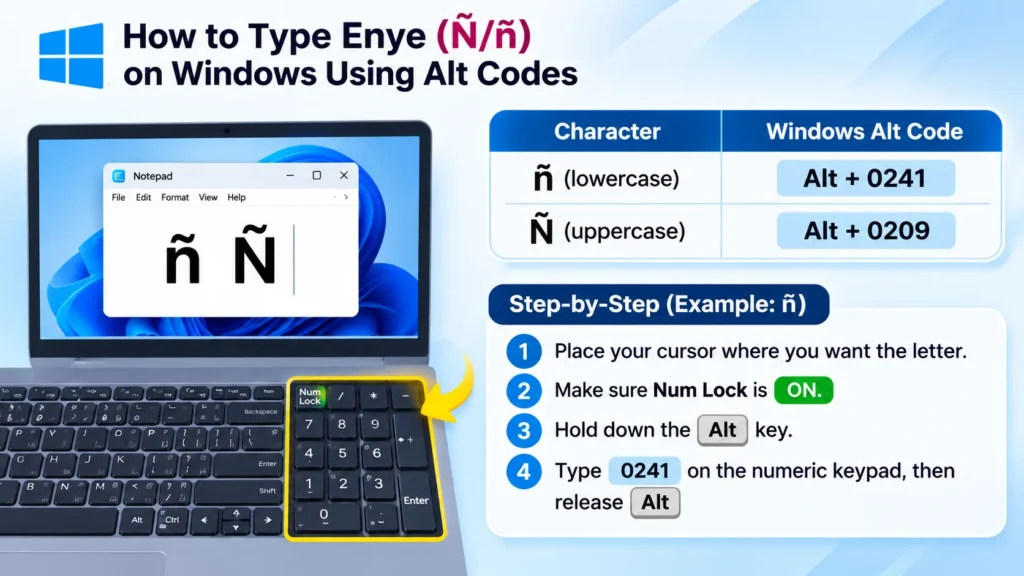
Windows provides a convenient way to type special characters using Alt codes. This method works in many applications, including Microsoft Word, Notepad, and supported text fields.
Type Small Enye (ñ) on Windows
Follow these steps:
- Place your cursor where you want to insert the letter.
- Make sure Num Lock is enabled.
- Press and hold the Alt key.
- Type 0241 using the numeric keypad.
- Release the Alt key.
The lowercase Enye character ñ should appear.
You can also try Alt + 164, which produces the same character in many Windows applications.
Type Capital Enye (Ñ) on Windows
To type uppercase Enye:
- Click where you want the character to appear.
- Enable Num Lock.
- Hold down the Alt key.
- Type 0209 on the numeric keypad.
- Release Alt.
The uppercase character Ñ will appear.
Alternatively, Alt + 165 works in many Windows programs.
If these shortcuts don’t work, check whether your keyboard has a numeric keypad and whether the application supports Alt-code input.
How to Type Enye on a Laptop Without a Numpad
Many modern laptops have compact keyboards without a separate numeric keypad. As a result, traditional Windows Alt codes may not work.
Fortunately, you can still type Ñ and ñ using other methods.
Method 1: Use Windows Character Map
Character Map is a built-in Windows utility that allows you to find and copy special characters.
- Press Windows + S to open Search.
- Type Character Map.
- Open the Character Map application.
- Locate the letter Ñ or ñ.
- Select the character and click Select.
- Click Copy.
- Paste the character wherever you need it.
This method works without a numeric keypad and doesn’t require additional software.
Method 2: Use the Windows Touch Keyboard
Windows also includes an on-screen touch keyboard that can provide accented characters.
- Open Windows Settings.
- Navigate to the keyboard or touch keyboard settings.
- Enable access to the touch keyboard.
- Open the touch keyboard.
- Press and hold the letter N, if your selected keyboard layout supports accented-letter options.
- Select ñ or Ñ.
Available characters depend on your Windows version and keyboard language.
Method 3: Add a Spanish Keyboard
If you regularly type Spanish or Filipino words containing Enye, adding a Spanish keyboard layout may be more convenient.
Open Settings > Time & language > Language & region and add a Spanish keyboard through the available language options.
After installation, switch between keyboard layouts using Windows + Space.
A standard Spanish keyboard layout includes a dedicated Ñ key, making the letter easier to type.
How to Type Enye on Mac
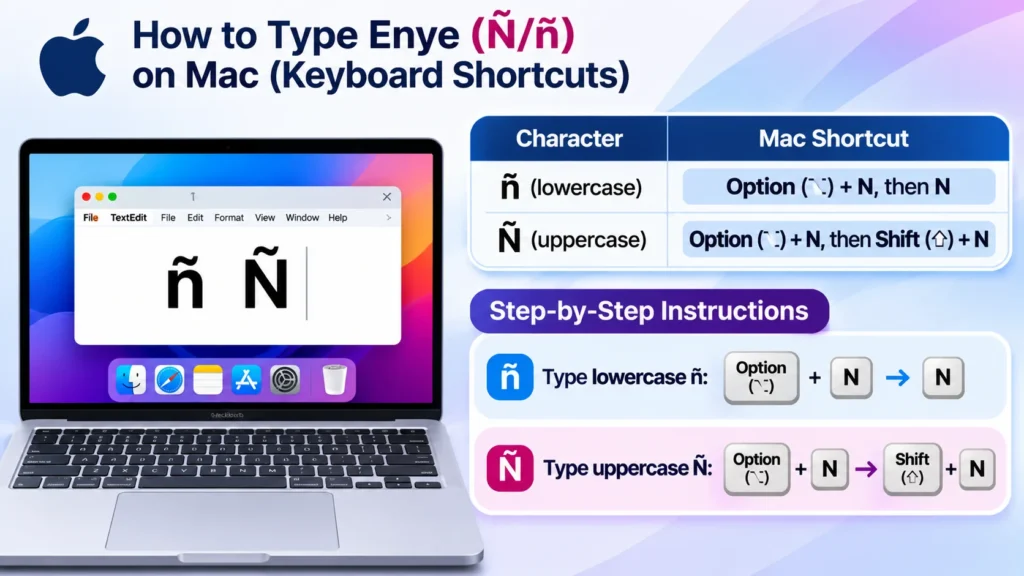
Mac computers provide a simple keyboard shortcut for typing Enye. Unlike Windows Alt codes, this method doesn’t require a numeric keypad.
Type Lowercase Enye (ñ) on Mac
- Position your cursor in a text field.
- Press Option + N.
- Release both keys.
- Press N again.
The lowercase Enye ñ will appear.
The first shortcut creates the tilde accent, while the second keystroke applies it to the letter N.
Type Uppercase Enye (Ñ) on Mac
- Place the cursor where you want the letter.
- Press Option + N.
- Release the keys.
- Press Shift + N.
The uppercase Enye Ñ should appear.
On supported macOS keyboard layouts, you can also press and hold the N key to display accented-letter options, then select the desired character.
If the shortcuts behave differently, check your active keyboard layout under macOS keyboard settings.
How to Type Enye in Microsoft Word
Microsoft Word supports several methods for inserting special characters, including Enye.
Method 1: Use Word Keyboard Shortcuts
For lowercase Enye:
- Open your Word document.
- Press Ctrl + Shift + ~.
- Release the keys.
- Press N.
For uppercase Enye, use the same accent shortcut, then press Shift + N.
These shortcuts work in supported desktop versions of Microsoft Word on Windows.
Method 2: Insert Enye Using Symbols
If you prefer using menus:
- Open Microsoft Word.
- Click the Insert tab.
- Select Symbol, then More Symbols.
- Find Ñ or ñ in the character list.
- Select the required letter.
- Click Insert.
You can also locate the characters using their Unicode values: 00D1 for Ñ and 00F1 for ñ.
Method 3: Use Unicode Conversion
In supported Windows versions of Microsoft Word, type 00F1 and press Alt + X to convert it into ñ.
For uppercase Enye, type 00D1 and press Alt + X to produce Ñ.
Make sure the cursor is immediately after the hexadecimal code before pressing the shortcut.
How to Type Enye in Google Docs
Google Docs offers a built-in special characters feature, allowing you to insert Enye without memorizing shortcuts.
Follow these steps:
- Open your document in Google Docs.
- Click Insert in the menu.
- Select Special characters.
- Search for Latin small letter n with tilde or Latin capital letter N with tilde.
- Click the character you want to insert.
The selected letter will appear at your cursor’s position.
You can also copy Ñ or ñ from this article and paste it directly into Google Docs.
If you’re using a Mac, the Option + N shortcut generally works in Google Docs as well.
How to Type Enye in Microsoft Excel
Typing Enye in Excel is useful when working with Spanish names, Filipino addresses, and multilingual spreadsheets.
If you’re using Excel on Windows with a numeric keypad, you can use:
- Alt + 0241 for lowercase ñ.
- Alt + 0209 for uppercase Ñ.
Alternatively, use Excel’s built-in Unicode functions.
Enter the following formula into a cell:
=UNICHAR(241)
This displays the lowercase Enye character ñ.
For uppercase Enye, enter:
=UNICHAR(209)
The result will be Ñ.
These formulas are particularly useful when generating special characters automatically in spreadsheets.
If you need a permanent text value instead of a formula, copy the resulting cell and paste it as a value.
How to Type Enye on Android
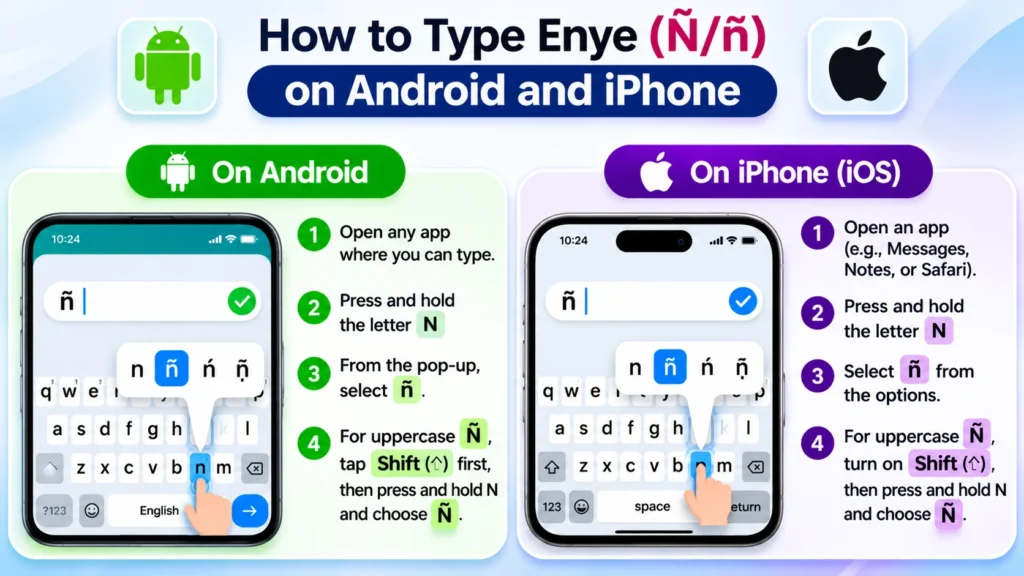
Most Android smartphones make it easy to type accented characters through their on-screen keyboards.
The exact appearance may vary depending on whether you use Gboard, Samsung Keyboard, or another keyboard application.
Steps to Type Enye on Android
- Open a messaging app, browser, or text editor.
- Tap a text field to display the keyboard.
- Press and hold the letter N.
- Wait for the accented-character menu to appear.
- Slide your finger to ñ.
- Release your finger to insert the letter.
For uppercase Ñ, enable Shift or Caps Lock before selecting the accented character.
If ñ doesn’t appear, try adding Spanish as an input language in your keyboard settings.
How to Type Enye on iPhone and iPad
Apple’s iPhone and iPad keyboards also support accented letters.
To insert lowercase Enye:
- Open an application where you can type.
- Tap the text field to open the keyboard.
- Press and hold N.
- Select ñ from the available options.
- Release your finger.
To type capital Ñ, activate the Shift key before pressing and holding N.
If your keyboard doesn’t show the character, add a Spanish keyboard through Settings > General > Keyboard > Keyboards > Add New Keyboard.
You can then switch between installed keyboards using the globe icon.
How to Type Enye in HTML and Web Pages
If you’re developing a website, you may need to display Ñ and ñ in HTML content.
There are several ways to include these characters.
HTML Character Entities
Use the following named HTML entities:
- Lowercase Enye:
ñ - Uppercase Enye:
Ñ
For example:
<p>España</p>
This displays the word España in a web browser.
HTML Numeric Character References
You can also use numeric references:
ñfor ñ.Ñfor Ñ.
Modern websites using UTF-8 encoding can normally include the actual characters Ñ and ñ directly in their HTML content.
For consistent character rendering, include <meta charset="UTF-8"> in your HTML document’s head section.
What Is the Enye Letter (Ñ/ñ)?
Enye is a distinct letter used in the Spanish alphabet and several other languages. It looks like the English letter N with a small wavy mark called a tilde above it.
Although it resembles an accented N, Ñ is considered a separate letter in Spanish, with its own pronunciation and place in the alphabet.
The lowercase form is ñ, while the uppercase form is Ñ.
The letter is especially common in Spanish vocabulary and in Filipino names, locations, and borrowed words.
Examples of Words Containing Enye
| Word | Meaning or Context |
|---|---|
| España | Spain in Spanish |
| Niño | Boy or child in Spanish |
| Año | Year in Spanish |
| Mañana | Tomorrow or morning in Spanish |
| Piñata | Decorated container used in celebrations |
| Señor | Mister or sir in Spanish |
| Baño | Bathroom or bath in Spanish |
| Peña | A Spanish surname and word |
| Cañon | A form found in some proper names; standard Spanish for canyon is cañón |
The distinction between N and Ñ can change the meaning of a word. For example, año means “year,” while ano refers to the anus in Spanish.
Using the correct letter is therefore important for spelling, pronunciation, and clear communication.
Why Is Enye Not Working on Your Keyboard?
Sometimes, keyboard shortcuts don’t produce the expected character. Several common issues may be responsible.
Num Lock Is Disabled
Windows Alt codes often require Num Lock to be enabled. If you’re using a full-size keyboard, activate Num Lock and try the shortcut again.
Your Laptop Has No Numeric Keypad
The number row above the letter keys usually doesn’t support traditional Alt codes. Try Character Map, a Spanish keyboard layout, or copy and paste instead.
Incorrect Keyboard Layout
Keyboard shortcuts can vary by language and operating system. Check your active keyboard layout if the expected character doesn’t appear.
The Application Doesn’t Support the Shortcut
Some browsers, remote desktop applications, and text editors may intercept certain keyboard combinations.
If a shortcut fails in one program, test it in Notepad or Microsoft Word.
Your Keyboard Language Is Different
If you frequently need Ñ, installing a Spanish keyboard layout may solve the problem permanently.
FAQs
What is the Alt code for Enye?
The commonly used Windows Alt codes are Alt + 0241 for lowercase ñ and Alt + 0209 for uppercase Ñ. These typically require a numeric keypad.
How do I type Enye without a numeric keypad?
You can use Windows Character Map, the on-screen keyboard, a Spanish keyboard layout, or copy and paste the character directly.
How do I type Ñ on a MacBook?
Press Option + N, release the keys, and then press Shift + N. For lowercase ñ, press N without Shift after Option + N.
How do I type Enye on a Chromebook?
On a Chromebook using the US International keyboard layout, you can typically type ñ by pressing Right Alt (AltGr) + N. You can also add a Spanish keyboard through ChromeOS input settings. The available shortcuts depend on your layout.
Is Ñ the same as N?
No. In Spanish, Ñ is a separate letter with a different pronunciation. Replacing Ñ with N can change the meaning or spelling of a word.
Can I type Enye using a regular English keyboard?
Yes. You can type Enye using Windows Alt codes, Mac shortcuts, Unicode conversion, special character menus, or copy and paste.
What is the Unicode for Enye?
The Unicode value for lowercase ñ is U+00F1, while uppercase Ñ uses U+00D1.
How can I type Enye quickly on my phone?
Press and hold the letter N on your mobile keyboard, then select ñ from the accented-character options. Use Shift for uppercase Ñ.
Final Thoughts
Typing Enye (Ñ/ñ) is straightforward once you know the correct method for your device. Windows users can rely on Alt codes, Mac users can use Option + N, and smartphone users can access the letter by pressing and holding N.
If your keyboard doesn’t have a numeric keypad, Character Map, special character menus, and copy-and-paste methods provide convenient alternatives.
For anyone who regularly writes Spanish or Filipino words, adding a Spanish keyboard layout can make typing Ñ and ñ faster and more convenient.
Keep this guide handy whenever you need to insert Enye into documents, spreadsheets, emails, websites, or messages.